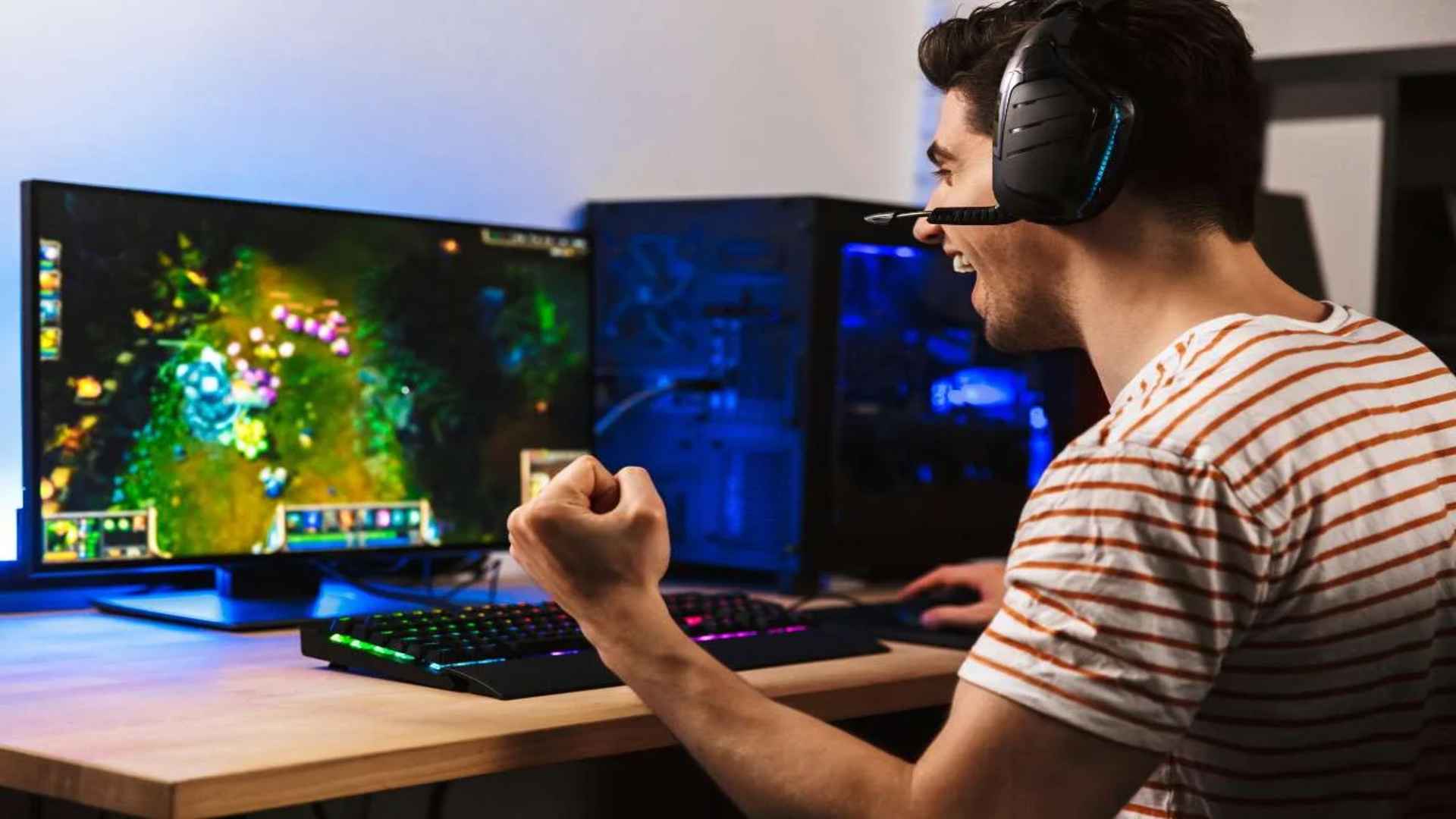
Setting up multiple displays can significantly elevate your gaming and productivity experiences by providing extra virtual real estate. However, many PC enthusiasts frequently encounter a frustrating glitch where a newly launched video game completely ignores the primary display and initializes on a secondary screen instead. Understanding the underlying triggers behind this hardware miscommunication is essential for restoring order to your multi-monitor gaming workstation.
Understanding Why Games Launch on the Secondary Display
The primary catalyst for this annoying display behavior often involves how your operating system manages temporary desktop maps. When you connect or disconnect external screens, the operating system attempts to rebuild the coordinate system, which can occasionally cause internal configuration profiles to mismatch. Consequently, certain applications fail to recognize which panel is designated as the primary target during their startup sequence.
Another frequent culprit relates to outdated graphics card components or active background application overlays that interfere with rendering pipelines. Certain titles will simply remember the exact coordinates where they were last closed, regardless of your current layout settings. Furthermore, peripheral driver conflicts can temporarily hide your main screen identity from software engines during initial boot phases.
Utilizing Built-In Windows Keyboard Shortcuts
One of the quickest methods to remedy a misplaced application window relies on standard keyboard inputs built directly into the operating system. If a title launches on the secondary monitor, you can instantly force it to migrate across screens by utilizing a swift shortcut combination. Pressing the Windows key along with Shift and the Left or Right Arrow keys will immediately jump the active process to your adjacent panel.
This method works seamlessly for games running in borderless windowed or standard windowed presentation styles. It saves you the immense hassle of altering your configuration profiles or digging through dense in-game options menus before playing. Many users find that once a game is shifted using this combination, the software engine updates its configuration and remembers the preferred destination for subsequent sessions.
Adjusting Core Operating System Display Parameters
If keyboard shortcuts fail to create a permanent resolution, you will need to manually inspect your core system configuration settings. Right-click on an empty space on your desktop and navigate directly to the system display configuration dashboard. From this menu, click on the visual representation of your preferred gaming screen and ensure that the primary display checkbox option is actively enabled.
Sometimes toggling this option off and on forces the system architecture to correctly redistribute rendering priorities across all active video outputs. Additionally, verifying that your desktop resolution matches the native output capabilities of your panel will prevent scaling anomalies from pushing windows out of bounds. Keeping your GPU software suite fully updated also ensures the driver ecosystem handles monitor topology changes smoothly without losing track of your primary screen destination.
Modifying Internal In-Game Video Settings
When system-level solutions fail, the ultimate fix usually resides within the display adjustments of the specific title you are trying to play. Boot the game and navigate directly into its graphics options menu to look for a dedicated monitor selection variable. Many modern engines include a dropdown list that allows you to explicitly choose which detected hardware device should handle the software rendering.
If the game lacks a direct display selector, switching the presentation mode from fullscreen to windowed can act as a reliable workaround. Once windowed, simply drag the application frame over to your preferred gaming panel before re-enabling the borderless fullscreen setting. This structural shift updates the local configuration file of the game, anchoring the application to the correct coordinates for all your future play sessions.